Study Modes
Three surfaces, one scheduler. Every card type works in every mode — basic, bidirectional, type-in, cloze, code cloze, occlusion, and line cards — and each mode asks the same questions of them.
A fence that fans out into several cards is several questions everywhere: a three-group cloze is three reveals and three ratings, a bidirectional pair is two, an occluded diagram is one per mask group.
Sequential Study
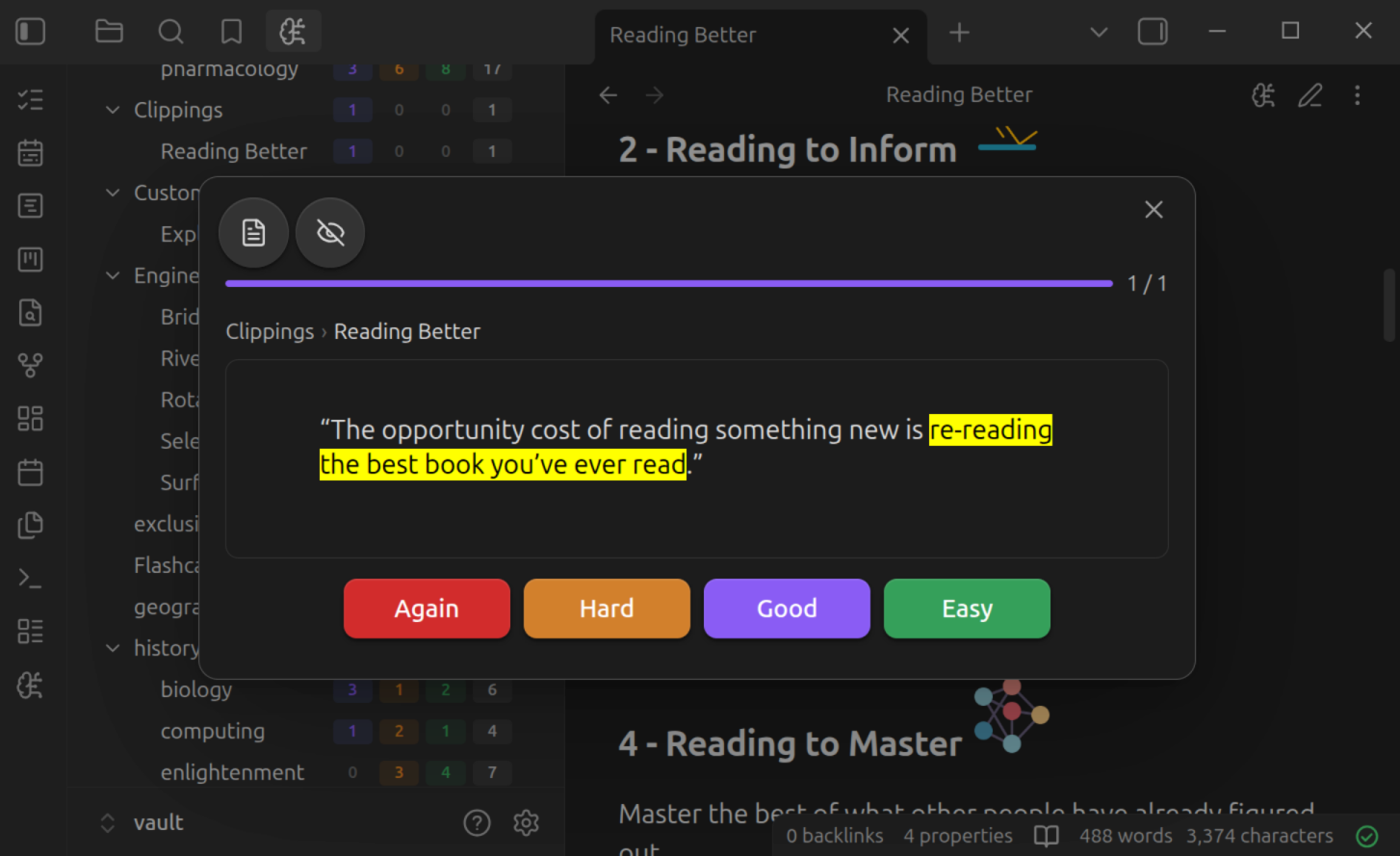
Classic card-by-card review in a modal dialog.
- Open the dashboard and click a deck (or Study all)
- The front of the card appears
- Click Show Answer (or press Space) to reveal the back
- Rate your recall: Again (1), Hard (2), Good (3), Easy (4)
- The next card appears
A progress bar at the top tracks remaining cards. Optionally, turn on Settings > Osmosis > Show deck breadcrumb in study modal to see which deck the card on screen belongs to.
Type-in cards
For type-in cards, a text input replaces the "Show Answer" button. Type your answer and submit to compare against the correct answer.
Session Actions
Three icon buttons sit in the modal's top-left corner, beside the close button:
| Action | Key | What it does |
|---|---|---|
| Open note | G | Opens the card's source note and scrolls to the line it came from |
| Exclude card | E | Takes the card out of study — see below |
| Undo | Ctrl+Z | Steps back through the session |
Undo is multi-level: press it repeatedly to walk back through the session. It reverts excludes and ratings alike — undoing a rating restores the card's previous FSRS schedule, so a misclick costs you nothing.
Exclude works differently depending on the card. Fence cards get exclude: true written into their fence; line cards get disabled: true in the note's osmosis-schedule. Either way the history is kept and the card can be brought back later — from the same button, or in the card browser.
Keyboard Shortcuts
| Key | Action |
|---|---|
| Space or Enter | Show answer |
| 1 / 2 / 3 / 4 | Again / Hard / Good / Easy |
| E | Exclude card |
| G | Open note at the card's line |
| Ctrl+Z | Undo |
Cards can come back mid-session
A card you rate Again reappears later in the same session, after a delay set by your learning steps. If every remaining card is waiting on a timer, a "Waiting for next card" countdown appears instead of the session ending.
Contextual Study
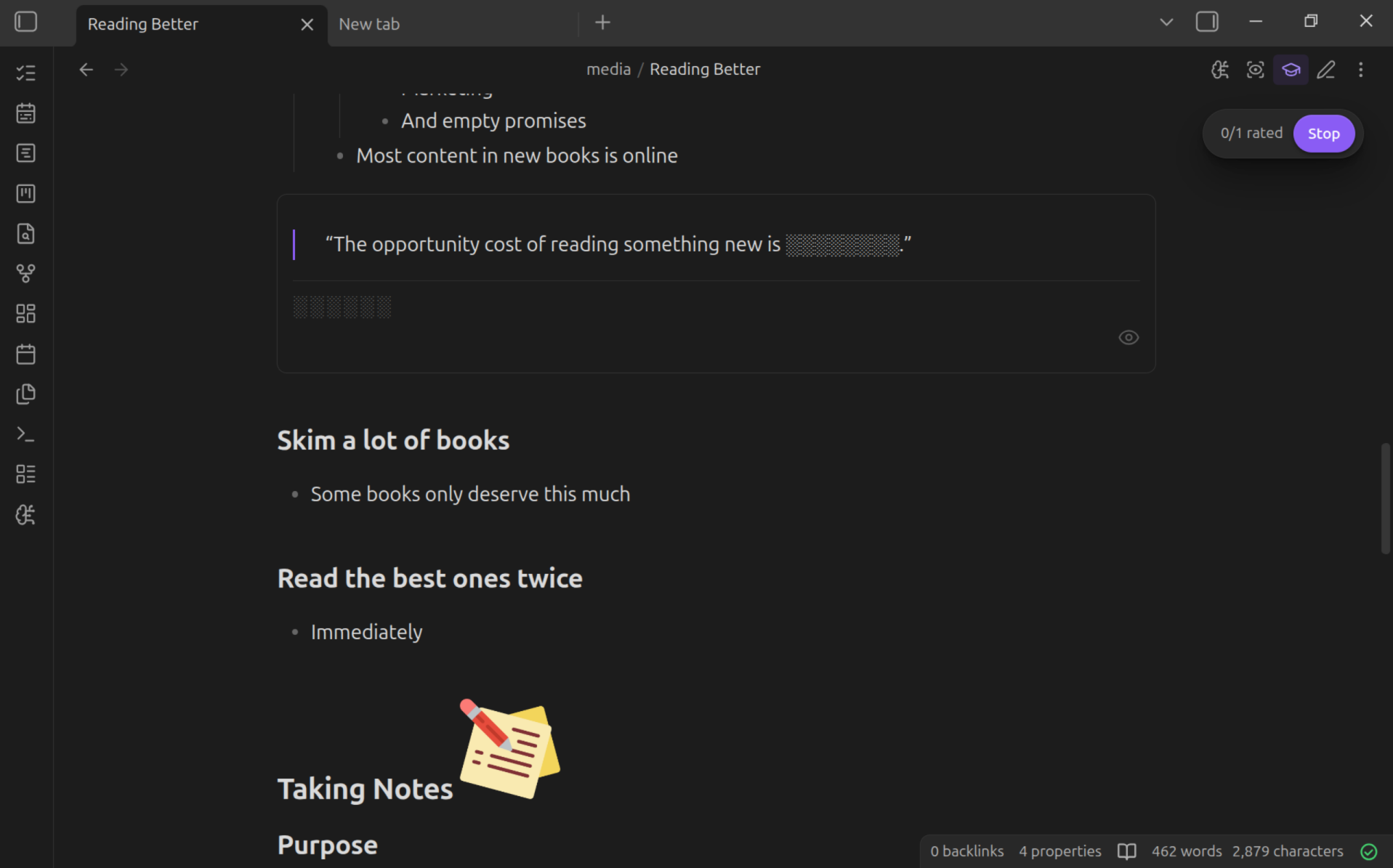
Study in the note itself — no modal, no context switching, surrounded by the explanations and examples you wrote.
Two actions appear in the header of any note that has cards, next to the reading/edit toggle:
- Peek mode — hides every card in the note. Reveal them in any order by clicking; nothing is recorded. The equivalent of covering the page with your hand.
- Study this note — hides only the cards that are due or new, and asks them one at a time. After each reveal, a rating bubble appears and must be answered before the next card unlocks. A floating pill tracks progress ("4/9 rated") with a Stop button, and a toast confirms completion. If nothing is due, the button tells you instead of starting a session.
Reading a note is not a quiz
Outside a session, reading view renders your cards the way live preview does — answers visible, clozes filled in. Hiding belongs to peek and study, and nothing is hidden until you ask for it.
How Cards Reveal
- Cloze cards reveal in place — the blanks fill in and the surrounding sentence stays put, so your eye never leaves the passage.
- Basic and bidirectional cards stack — the answer appears beneath the question, because there the answer doesn't contain the question.
- Line cards hide behind a
░░░░░░placeholder and reveal in place. - Multi-line blocks hide as one unit — a code block, table, or callout hides whole, including a list nested inside a callout, matching what the mind map does.
- Cards that aren't due render normally during a session — visible as context, not asked, not counted.
Once you rate a card, its answer stays visible for the rest of the session — you're reading the note, not drilling. Each card also carries an exclude toggle, and Ctrl+Z undoes ratings and excludes here just as it does in the sequential modal.
Embedded notes stay put
Contextual study deliberately leaves ![[embeds]] alone. Study an embedded
note's cards in its own reading view, or on a map that
includes it.
Spatial Study
Study on the mind map itself. Concepts stay in their spatial context, reinforcing structural relationships.
- Open a mind map of a note with cards
- Click the icon in the mind map header
- Nodes whose cards are due or new hide behind
?placeholders — the rest of the map stays fully visible, because seeing how information fits together is the point - Tap a hidden node to reveal it
- Rate with the bubble that appears below the node — Again (1), Hard (2), Good (3), Easy (4)
- A floating pill tracks progress with a Stop button; a toast confirms when every due card is reviewed, and the map stays open
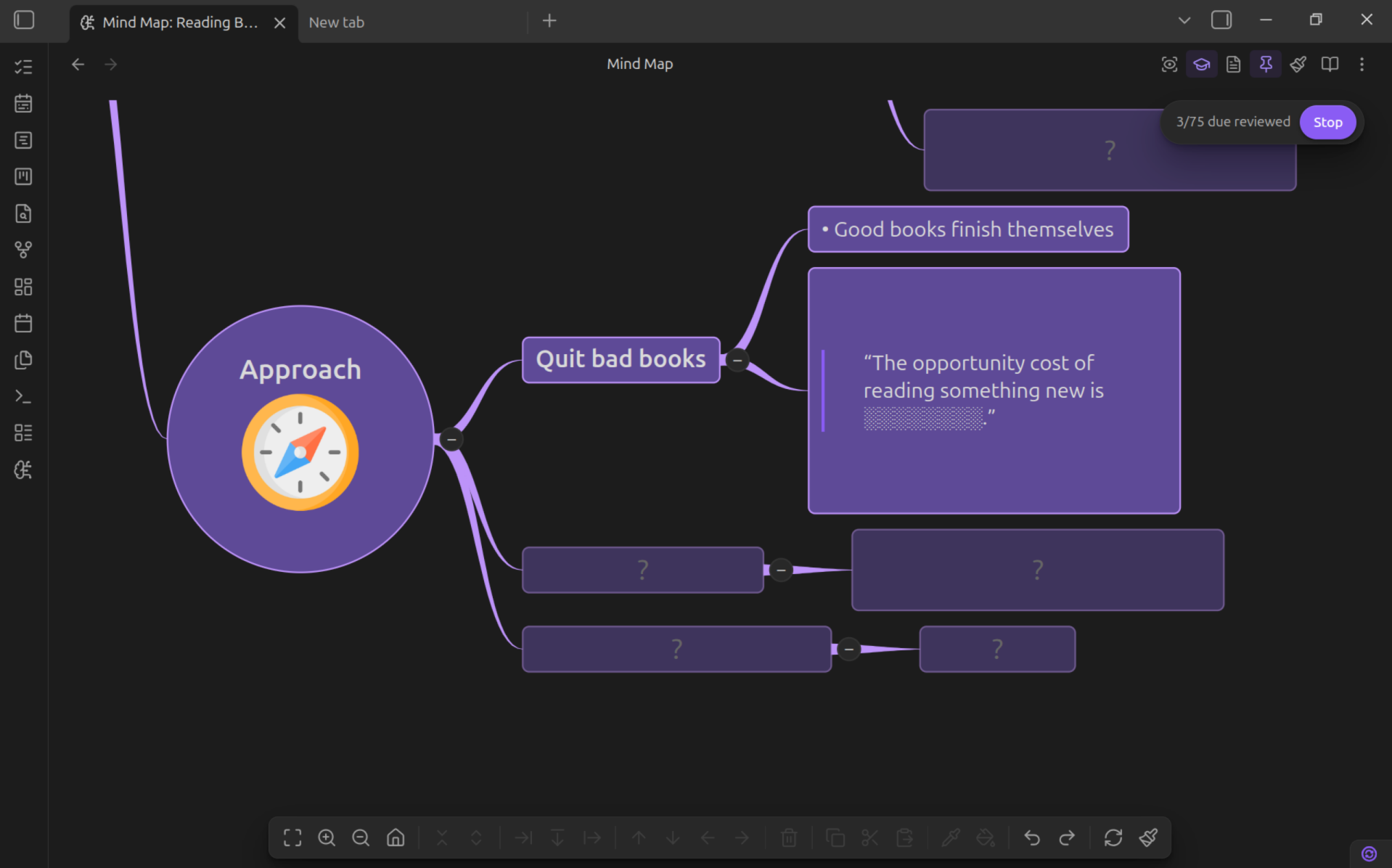
A node holding a multi-card fence steps through its questions one at a time — the node's content swaps per question — so a three-group cloze on the map asks exactly what it asks in the modal.
Spatial study is especially powerful for topics where understanding the relationships between concepts matters as much as memorizing individual facts. The physical position of nodes on the map creates spatial memory associations that reinforce recall.
Study a single branch
Right-click any node and choose Study this branch to scope the session to that subtree's due cards.
Study without risking edits
Spatial study and peek work in mind map reading mode. Rating is study metadata, not a map edit — so on a phone, where a stray tap-drag can rearrange a branch, reading mode gives you a study surface that can't be changed by accident.
Transcluded Content
Embedded notes (![[note]]) are first-class citizens in spatial study and peek: if the embedded note has line cards, its nodes hide and reveal on the host map just like local ones, and ratings are written to the embedded note's own osmosis-schedule — the schedule always lives with the note that owns the line. A card studied on a host map and in its home note is the same card, so scheduling stays consistent everywhere.
- Embedded notes without flashcards (no
osmosis-cardsopt-in, or no generated block IDs) simply stay visible as context. - A note whose line cards are opted out of decks is still studiable in place — opt-out only affects decks and sequential study.
- Embedding the same note twice puts both copies on one card: revealing one reveals the other, and it is rated (and counted) once.
Peek on the Map
The icon next to the study button enters peek mode: every card node hides, you reveal them in any order by tapping, and nothing is recorded.
Choosing a Mode
| Mode | Best for | Context |
|---|---|---|
| Sequential | Focused review, clearing a backlog | Modal dialog, no distractions |
| Contextual | Studying while reading | Inline in your notes |
| Spatial | Learning structure and relationships | On the mind map |
All three modes use the same FSRS scheduler — a card rated in one mode updates its schedule everywhere. The statistics dashboard can tell you which mode is actually working best for you: Recall by study mode compares them.
Excluded cards
A card you've excluded from study sits out all three modes: it stays visible in peek and study, never enters the sequential queue, and doesn't count toward dashboard totals. Its history is kept, so including it again picks up where it left off.