Quick Start
Open a Mind Map
- Open any markdown file in your vault
- Click the icon in the editor header bar (next to the reading view toggle)
- Your headings and lists appear as an interactive mind map
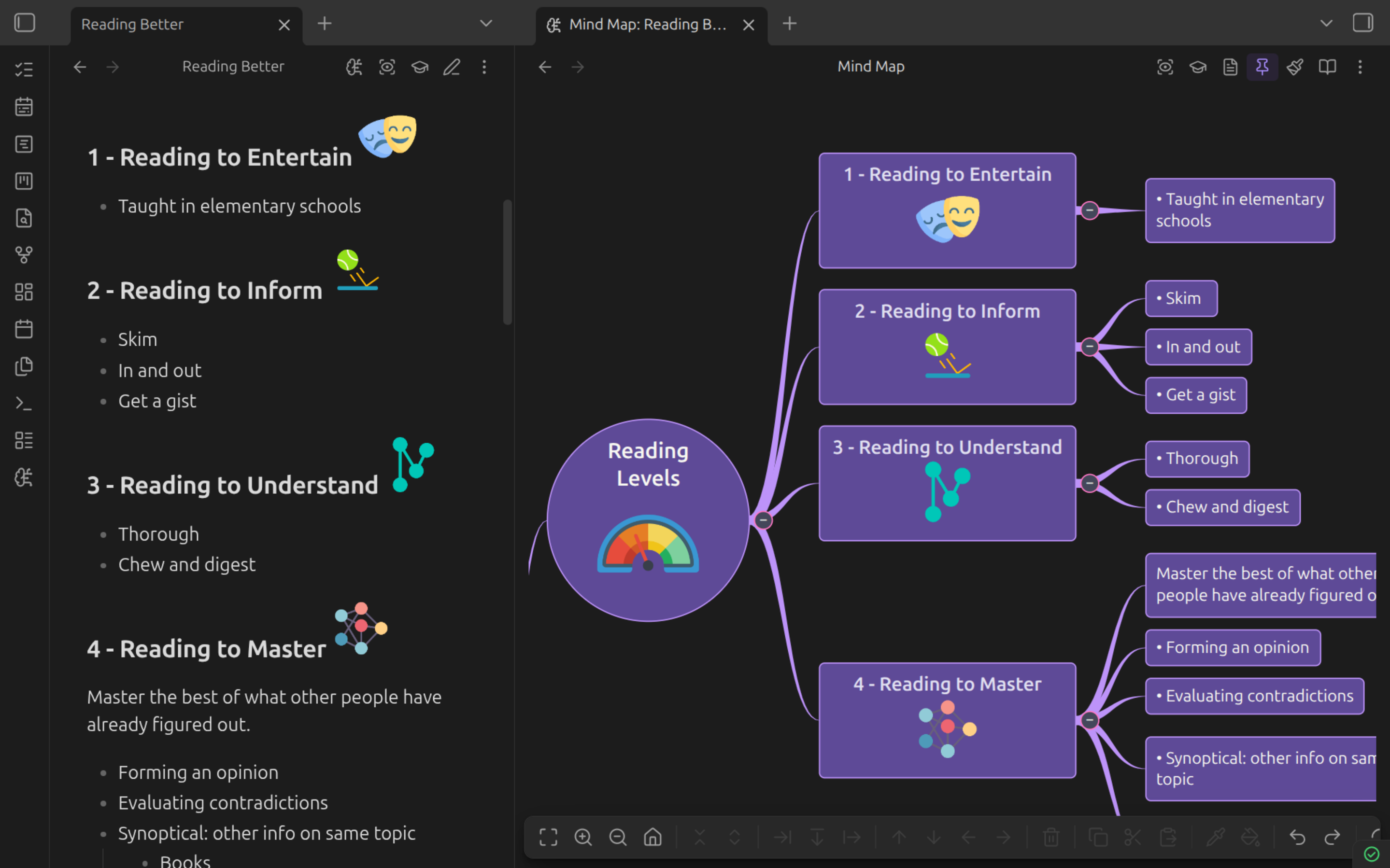
You can also open a mind map from:
- Command palette — "Open mind map view"
- File menu — Right-click a file, select "Mind map view"
Drag a branch somewhere new and your Markdown updates immediately. Edit the Markdown and the map follows.
Create a Flashcard
Add an osmosis code fence anywhere in a markdown file:
The *** separator divides the front (question) from the back (answer).
There are quicker ways once you're settled in:
| Way in | Good for |
|---|---|
| Insert basic card in the command palette | One card, right here |
| Rapid Flashcard Mode | Typing a run of cards, especially on a phone |
| Generate flashcards from note | Turning a note you already wrote into cards |
| Create image occlusion | Anything visual — right-click an image |
Enable Cards for a Note
Cards aren't generated unless the note opts in:
The card-insertion commands, Rapid Flashcard Mode, and the occlusion editor add this for you. You can also opt in whole folders or tags under Settings > Osmosis.
Start Studying
- Click the icon in the left ribbon to open the Osmosis dashboard
- Your decks appear with counts: new, learning, due, and the total waiting now
- Click a deck to start a study session — or Study all
Three study modes
- Sequential — classic card-by-card review, from the dashboard
- Contextual — study in the note, with the Study action in the note's header
- Spatial — study on the mind map, with the icon in the mind map header
Every card type works in every mode, and a card rated anywhere updates its schedule everywhere.
What's Next?
- Learn the full set of mind map editing and navigation shortcuts
- Explore all card types, including cloze deletions, code cloze, and image occlusion
- Customize your maps with themes and styling
- Watch your progress on the statistics dashboard