Card Browser
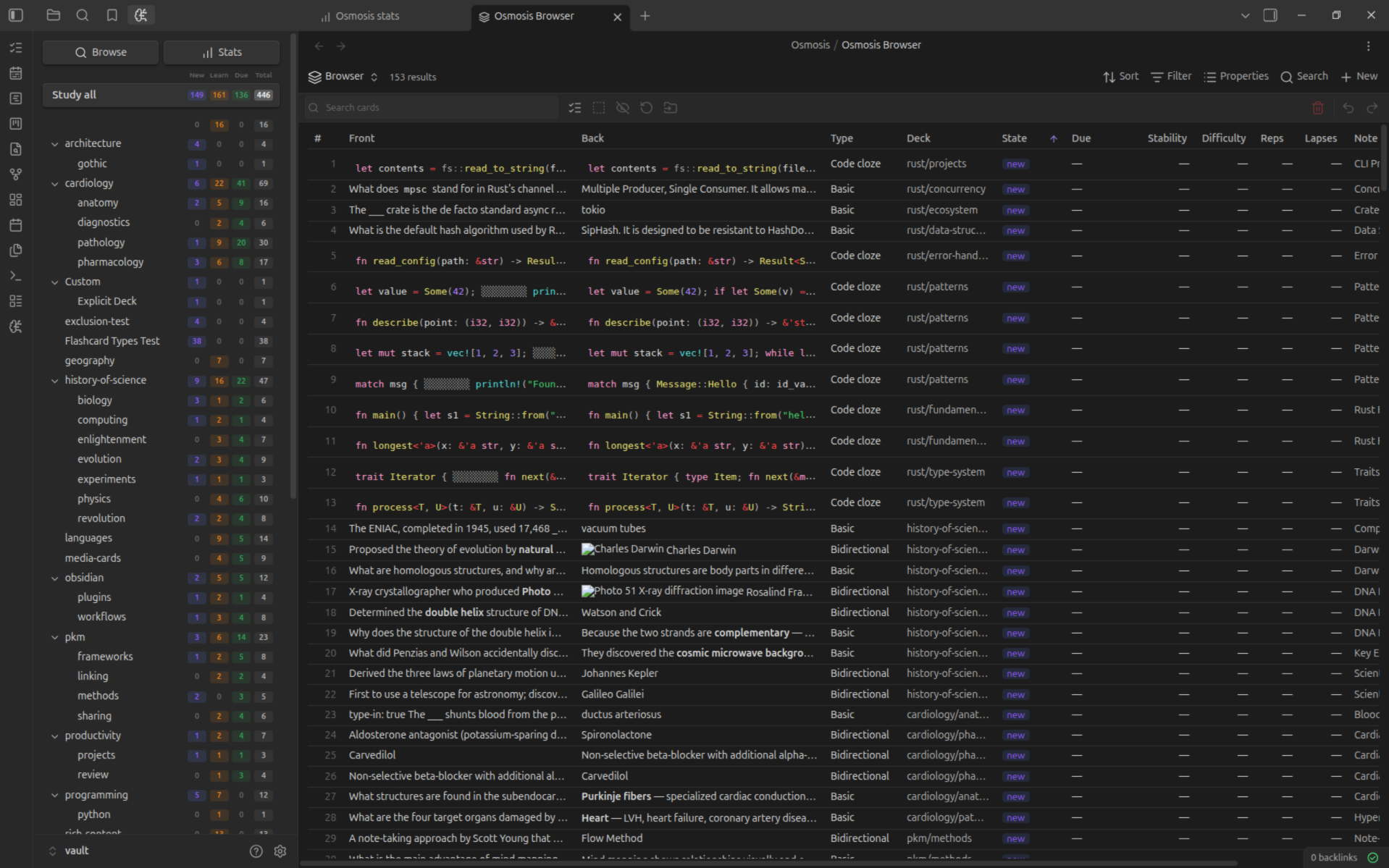
The Osmosis Browser is every card in your vault in one list — fences, line cards, clozes, occlusions and all — with the scheduling controls you would expect: suspend, reset, change deck, delete.
Open it with the Browse button on the dashboard, or run Open card browser from the command palette.
The browser is a Bases view
Browse opens a .base file (Osmosis/Osmosis Browser.base, created on first
use) rather than a bespoke panel. That means Bases' own Filter, Sort
and grouping menus work on the notes your cards live in, while every
card-level control lives in the view's own toolbar and in the view options
panel. Bases is an Obsidian core plugin — if it's turned off, Browse says so
instead of opening. You can also add the Osmosis Cards view to any base
of your own.
Layouts
Set Card layout in the view options:
| Layout | Best for |
|---|---|
| Table | Scanning and sorting a lot of cards; twelve columns, resizable and sortable |
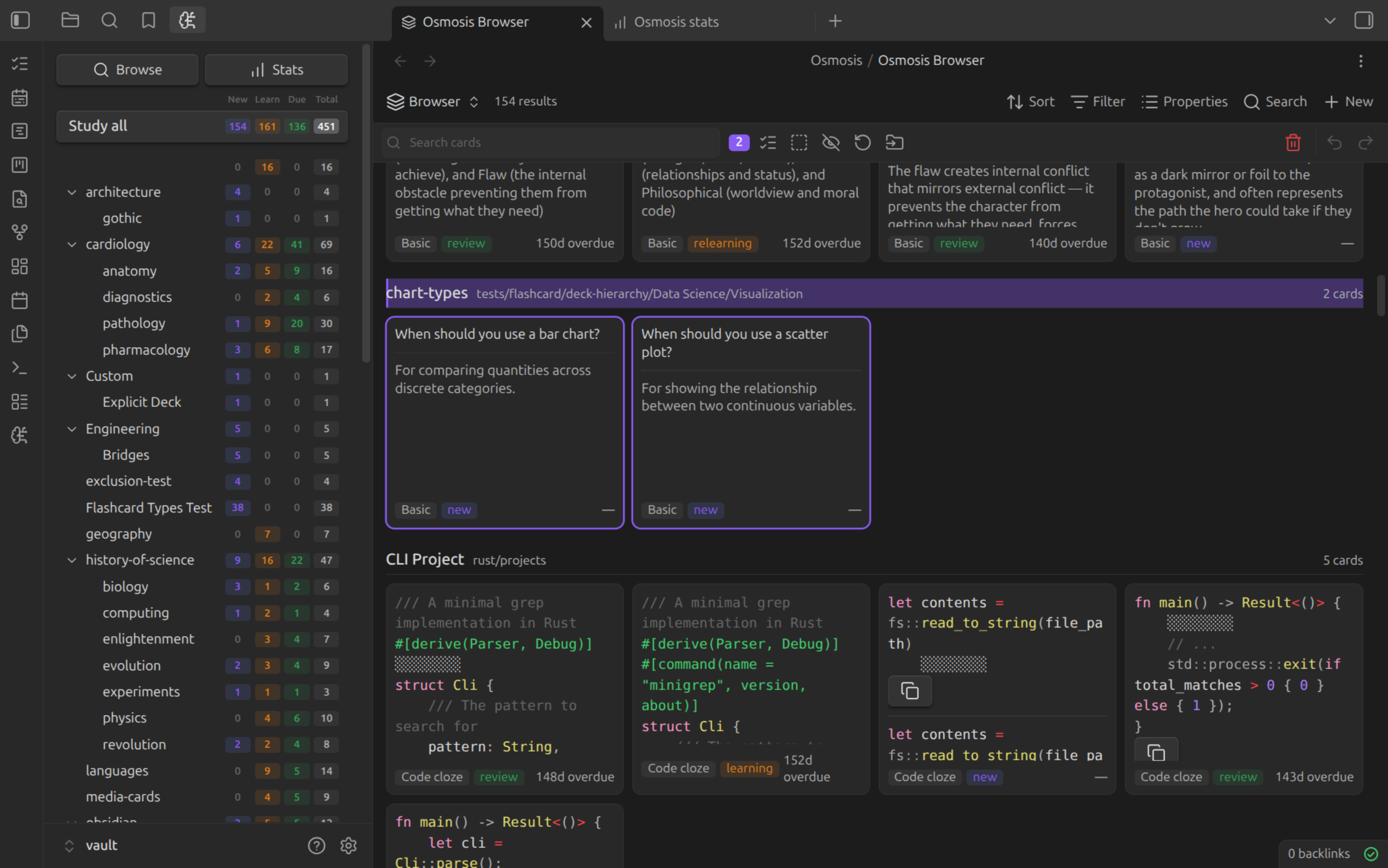
| Cards | Reading fronts and backs as rendered markdown, with a Card height slider |
Table columns: Front, Back, Type, Deck, State, Due, Stability, Difficulty, Reps, Lapses, Note, ID. Drag a column edge to resize it, double-click a grip to reset every column, and click a header to sort (click again to reverse).
Fronts and backs render as real markdown — images, embeds, LaTeX and code included — and render lazily as you scroll.
Filtering
Card-level filters live in the view options panel:
| Option | Values |
|---|---|
| Card state | All, New, Learning, Review, Relearning |
| Due within | Any, Overdue, Today, Next 7 days, Next 30 days |
| Card types | One toggle each for Basic, Bidirectional, Cloze, Code cloze, Occlusion, Line |
| Sort cards by | Base order, Due, State, Stability, Difficulty, Reps, Lapses, Note, Deck |
| Show suspended cards | Off by default |
The search box in the toolbar matches front, back, deck, and card ID. It's applied on Enter or when the box loses focus.
Unchecking every card type shows everything
An empty type selection means "no constraint", not "nothing" — so a blank panel is never what you get.
Bases' Filter menu still works, one level up: use it to narrow to a folder, a tag, or any note property, then use the view's own controls to narrow to cards within those notes. Grouping from Bases renders as an outer level above the browser's own note grouping.
Selecting Cards
| Input | Action |
|---|---|
| Click a row | Select it |
| Ctrl / Cmd + click | Add or remove one row |
| Shift + click | Select a range |
| Select all button | Every card currently listed |
| Esc | Deselect |
| Long-press (touch) | Start a selection on mobile |
Mutations
With a selection, the toolbar's icon buttons act on it. Every button stays visible and dims when it can't apply, so nothing moves under your finger.
| Action | What it does |
|---|---|
| Suspend / Unsuspend | Takes cards out of study, keeping their history |
| Reset | Clears FSRS scheduling and returns cards to new. Review history is kept |
| Change deck | Writes osmosis-deck to the cards' notes |
| Delete | Removes the cards from your notes, behind a confirmation |
| / Undo / Redo | Steps back through this session's mutations |
Delete removes the card, not your prose. A fence card is its fence, so the
fence goes. A line card is deleted by stripping its ^os- block ID — the line
itself stays exactly as you wrote it.
Fence metadata is per-fence
A bidirectional fence produces two cards and a cloze fence produces one per
group, but the fence carries a single exclude: key. So:
- Suspend takes the whole fence's cards along, deliberately, and the result message tells you how many came with it.
- Reset is per-card: resetting one cloze group leaves its siblings' schedules untouched.
Undo
Undo and redo are session-only and snapshot-based — they're gone when Obsidian restarts, and they refuse wholesale if a file changed after the mutation. Delete is therefore reversible within a session, but the confirmation modal stays regardless. The commands Undo last card mutation and Redo last undone card mutation are bindable to hotkeys.
What It Doesn't Do
- No inline editing of fronts and backs. Cards are text in your notes; open the note to change what a card asks.
- Bases' Properties menu is inert here. It lists note properties, and the browser's columns are card fields.
- Suspending a single card of a multi-card fence would need a change to the fence format. Suspend the fence, or split the card out.