Editing
Double-click a node (or press F2) to enter edit mode. Press Esc to cancel.
Editing mode required
Everything on this page needs the map to be in editing mode. If nodes won't move or edit, the map is probably in reading mode — press Ctrl+E or click the header icon to switch back.
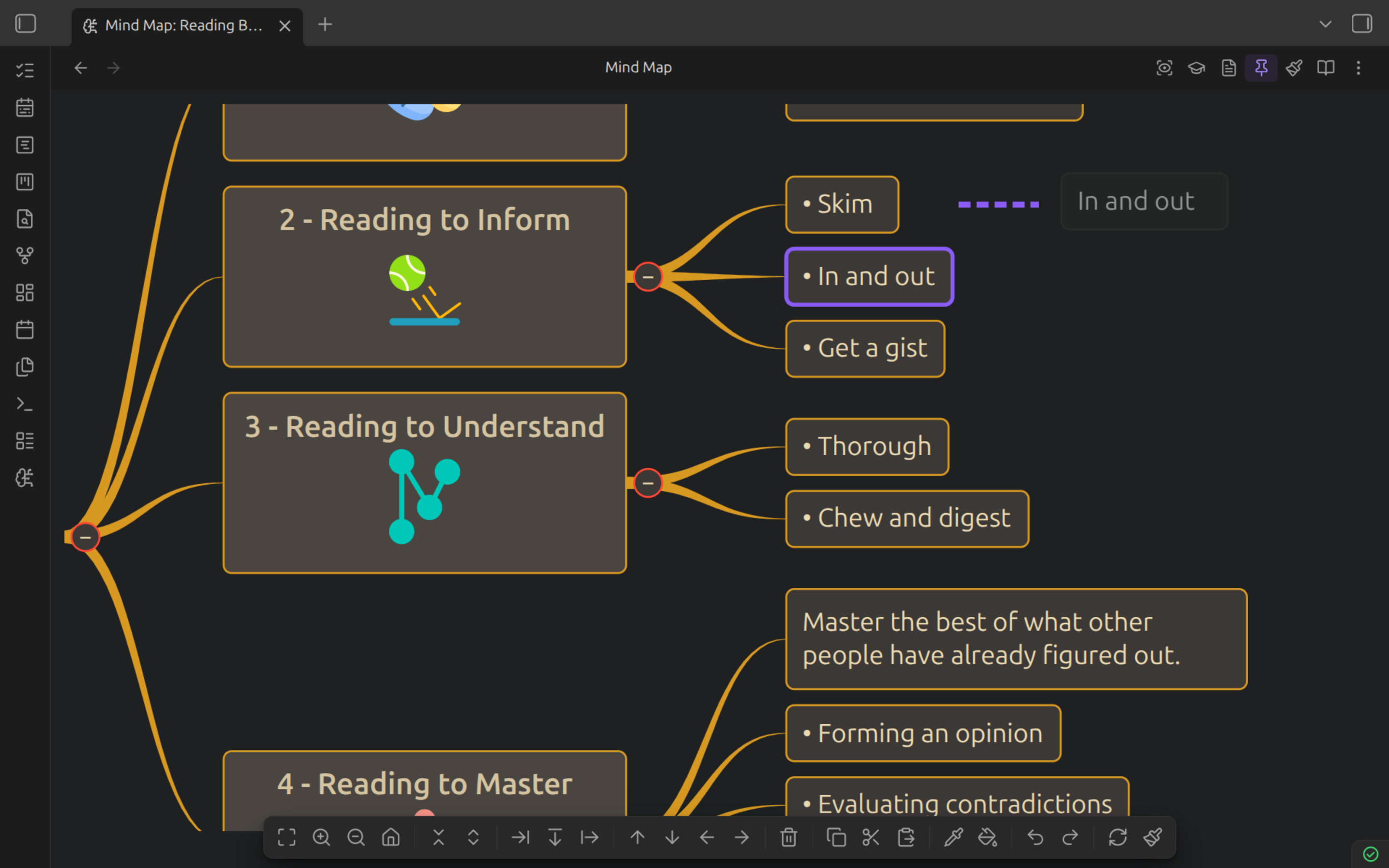
Editing a Node's Markdown
The edit box opens on the line's actual source, not a cleaned-up label. The
list marker, the heading hashes, the ordered number, the checkbox, an
![[embed]] — all of it is there and all of it is editable, so you can retype
- Grinder types as ## Grinder types without going back to the note.
Two things stay hidden, because neither is text you'd want to edit here:
- The trailing block ID (
^os-a1b2c3) — it's the card's identity and the node's style anchor, and it's re-attached when you save. It survives a line that changes kind mid-edit, so converting a bullet into a heading keeps its card and its history. - The leading indentation — depth belongs to the map's structure, and you change it with indent/outdent rather than by typing tabs.
Typing to rename a selected node replaces the text but leaves the marker, so "add child, then type" still produces a bullet. Ctrl+A selects everything, marker included.
The edit box tracks the map: it opens at the node's own size, scaled to the current zoom, wraps where the node wraps, and follows a pan or zoom while it's open.
Converting a line doesn't re-indent its children
Retyping - Parent as ## Parent converts that line only. Heading spacing
and list numbering are normalized on save either way, but the nesting is
yours to manage.
Toolbar
The toolbar is a sticky action bar at the bottom of the mind map view. It provides quick access to all major actions — hover over any button for a tooltip.
| Icon | Action | Requires Selection |
|---|---|---|
| Fit to view | No | |
| Zoom in | No | |
| Zoom out | No | |
| Center on root | No | |
| Collapse all | Yes | |
| Expand all | Yes | |
| Insert parent | Yes | |
| Add sibling | Yes | |
| Add child | Yes | |
| Move up | Yes | |
| Move down | Yes | |
| Move left (outdent) | Yes | |
| Move right (indent) | Yes | |
| Delete | Yes | |
| Copy | Yes | |
| Cut | Yes | |
| Paste | Yes | |
| Copy style | Yes | |
| Paste style | Yes | |
| Undo | No | |
| Redo | No | |
| Refresh mind map | No | |
| Map properties | No |
Buttons that require a selection are dimmed when no node is selected. The toolbar hides automatically when you're editing a node's text.
Structure Operations
| Action | Keyboard | Context Menu |
|---|---|---|
| Add child | Tab | Add child |
| Add sibling | Enter | Add sibling |
| Insert parent | Ctrl+Enter | Insert parent |
| Delete | Del or Backspace | Delete |
| Duplicate | Ctrl+D | — |
| Indent | Alt+Right | — |
| Outdent | Alt+Left | — |
| Move up | Alt+Up | — |
| Move down | Alt+Down | — |
Tip
Indent makes the node a child of its previous sibling. Outdent moves it up to its parent's level. These mirror the standard outliner operations.
Clipboard
| Action | Keyboard |
|---|---|
| Copy | Ctrl+C |
| Cut | Ctrl+X |
| Paste as child | Ctrl+V |
Copy and paste preserve the full subtree structure. You can also copy and paste node styles separately via the context menu.
Undo / Redo
| Action | Keyboard |
|---|---|
| Undo | Ctrl+Z |
| Redo | Ctrl+Shift+Z or Ctrl+Y |
The mind map keeps its own undo history, independent of the Markdown editor's. Each map operation is one undo step — a move, a paste, a delete, a style change, or a map-level change like switching theme or layout. Undo works whether focus is on the map or on the properties sidebar, and a color-picker drag collapses into a single step rather than one per shade you passed through.
Two consequences worth knowing:
- History is per map and lives in memory. It clears when you switch files, and it doesn't survive a restart.
- The map is deliberately blind to edits you make in a separate Markdown pane. Undo in the map undoes map operations; use the editor's own undo for edits typed there.
History Limits
Under Settings > Osmosis > Undo history:
| Setting | Default | What it does |
|---|---|---|
| Undo steps | 50 | Maximum operations kept per map |
| Undo memory cap (MB) | 20 | Ceiling on memory used by that history |
Whichever limit is hit first drops the oldest edits; the most recent edit is always kept. Changes take effect on the next edit — no reload needed. Raise the memory cap if you work with very large maps and want deeper history.
Multi-Line Blocks
Code blocks, tables, and callouts/blockquotes are atomic — each is one node, and structure operations treat it as a single unit. Moving, indenting, or copying such a node carries the whole block, including its trailing block ID line, so line card history follows it.
The same applies across a transclusion boundary: a node containing an ![[embed]] moves, copies, and deletes as one unit, and the embedded content re-renders in place after the edit (or after undo).
Context Menus
Right-click a node for:
- Add child, Add sibling, Insert parent
- Cut, Copy, Paste
- Copy style, Paste style
- Collapse all, Expand all
- Delete
Right-click empty canvas for:
- Fit to view
- Center on root
- Paste
- Collapse all, Expand all
- Refresh mind map
- Map properties